

Canva Craft Aspect Ratios and Resolution: Choose the Right Output
Choose a Canva Craft aspect ratio for the placement first, then check the output's pixel dimensions. Aspect ratio controls the shape of the composition. Resolution controls how much pixel information the file contains. A large image can still be the wrong shape for its destination.
Canva's Craft announcement describes output up to 2K and more than 30 aspect ratios, including custom proportions. For any particular generation workflow, use the available controls and inspect the downloaded file rather than assuming every shape has the same dimensions.
This guide helps you plan one image for a square graphic, wide slide, or tall poster, then decide whether to regenerate, crop, or enlarge it. Start from the Canva Craft generation workspace once you know where the result will be used.
Pick the shape before describing the scene
A ratio such as 16:9 describes width relative to height; it does not specify a file size. A 1600 × 900 image and a 3200 × 1800 image share the same shape but contain different numbers of pixels.
Use the destination's current requirements when they are available. The following are composition starting points, not universal platform upload specifications:
| Deliverable | Useful starting shape | Composition decision |
|---|---|---|
| Square promotional graphic | 1:1 | Keep the focal point compact; give the headline its own area |
| Widescreen presentation image | 16:9 | Use the width for a scene or leave a side clear for slide copy |
| Tall full-screen visual | 9:16 | Arrange the story vertically; keep essential information away from outer edges |
| Portrait poster | Match the intended paper or display | Allocate separate areas to headline, illustration, and details |
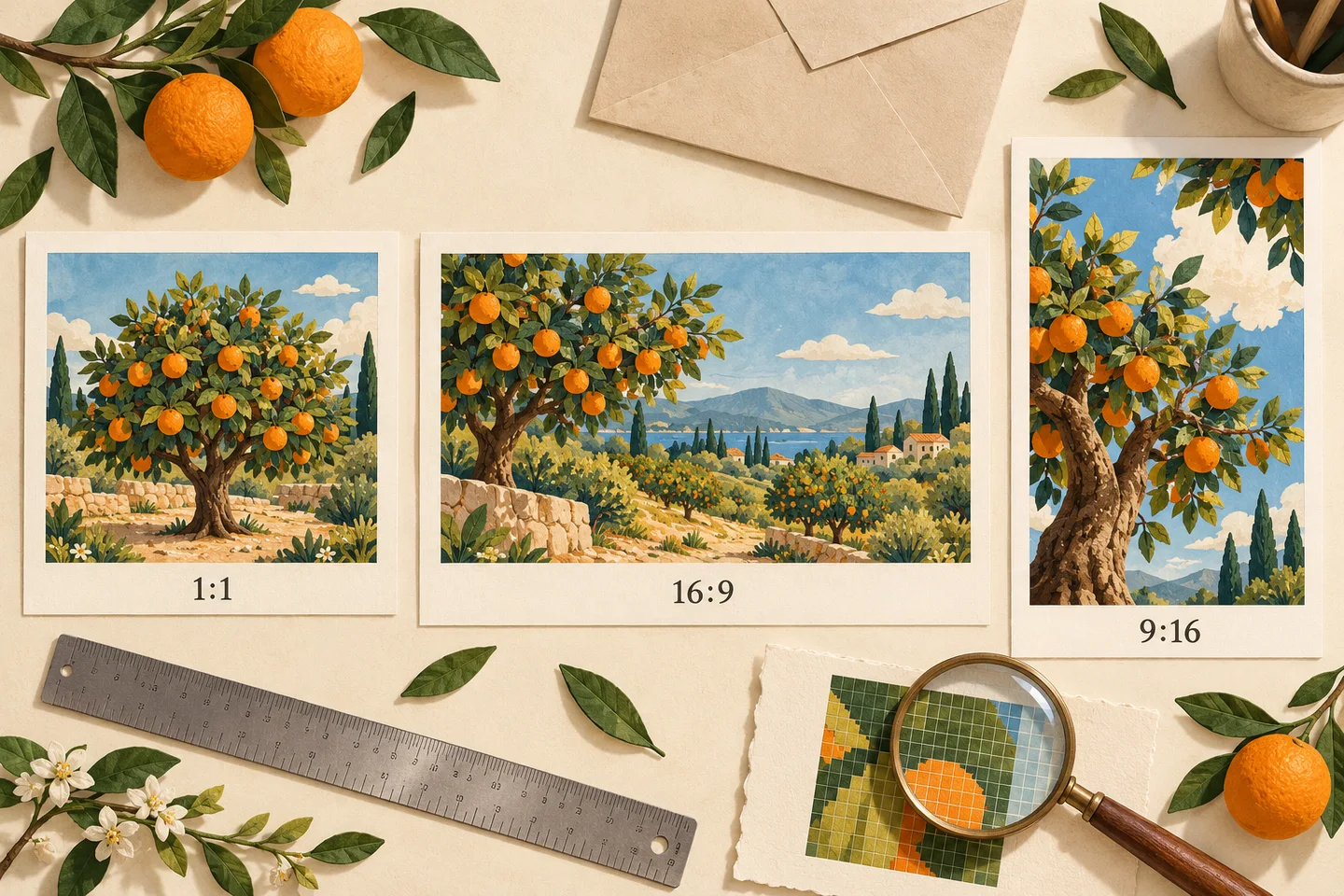
Generated concept illustration. The three layouts explain recomposition; they are not measured Craft outputs or a crop-quality test.
A square image may become unusable when converted to portrait because the subject, title, or important edge details disappear. Ask for a new composition when the destination changes substantially.
Recompose rather than just changing the ratio label
Suppose the subject is an orange tree. Give it a different spatial job in each format:
- Square: One tree centered, with a compact canopy and an even border of space.
- Landscape: The tree on the right, with an orchard extending left and room for a headline.
- Portrait: A taller trunk, a canopy in the middle, and a clear sky area above it for copy.
For a wide version, try:
Create a landscape editorial illustration of an orange grove. Place one orange tree on the right third and show the orchard extending into the distance on the left. Reserve a quiet area of pale sky above the left side for a headline added later. Use warm daylight, textured painted shapes, and dark green foliage. Include no lettering.
For the portrait version:
Create a tall editorial illustration of one orange tree. Let the trunk lead upward from the lower third to a rounded canopy in the middle. Leave a clear pale sky area across the upper quarter for a title added later. Keep the main tree comfortably inside the edges. Use warm daylight, textured painted shapes, and dark green foliage. Include no lettering.
Select the corresponding ratio in the output controls. The prompt guide explains how to connect these placement instructions to the rest of a brief.
Understand the cost of a crop
Cropping removes part of the file. It can be quick when the important content is already in the retained area, but it cannot recover something outside that area.
Consider a hypothetical 1600 × 900 landscape image. A centered square crop keeps 900 × 900 pixels: about 56% of its original pixel area. That may suit a simple background, but it could cut a subject or a heading off at the sides. These are arithmetic examples, not promised Craft output sizes.
Before cropping, check three things: whether the full subject survives, whether the text remains intact, and whether the remaining file still has enough pixels for the intended use. If any fails, a fresh composition is often the clearer route.
What 2K does and does not tell you
“2K” is an output-size label, not a complete print specification. Check the actual width and height of the downloaded image. Do not assume every format produces a 2048 × 2048 square or that a 2K label guarantees sharp small text.
For a screen placement, compare the file's pixel dimensions with the required display or upload dimensions. For printing, work from the finished physical size and the printer's requested pixel density.
Adobe's explanation of printed image resolution distinguishes the image's pixel dimensions from the pixels assigned to each printed inch. A practical calculation is:
Required pixels = printed size in inches × requested pixels per inch.
For example, an 8 × 10 inch print at 300 ppi needs 2400 × 3000 pixels. A hypothetical 1536 × 2048 image prints at about 5.12 × 6.83 inches at that density before any crop. These calculations help evaluate a file; they do not mean one ppi value fits every viewing distance or printing method. Ask the printer about the final size, bleed, and proofing requirements.
Changing a resolution metadata value alone does not add image detail. Upscaling adds pixels, but it does not prove that a misspelled word, distorted hand, or incorrect label has been repaired.
Choose between regenerating, cropping, and upscaling
| Situation | Next step | Check afterward |
|---|---|---|
| The subject fits, but there is expendable space at the edges | Crop a copy | Subject, copy, and remaining pixel dimensions |
| The subject or text cannot fit the new placement | Generate a new composition | Hierarchy, margins, and the complete subject |
| The composition works but the file needs more pixels | Try the separate image upscaler | Texture, edges, lettering, and file dimensions |
| The letters or factual details are wrong | Correct the content before resizing | Exact copy and real-world information |
If you use the upscaler, download the chosen image and upload it to that separate tool. Keep the original so you can compare the enlarged version at a matched viewing size. Use the poster text guide when the problem is lettering rather than pixel count.
Before you generate, write down the placement, shape, and minimum pixel dimensions. Then choose the output settings and describe a composition that uses the available space deliberately.
Product and printing sources checked October 23, 2026. Dimensions in worked examples are illustrative calculations, not a list of supported export sizes.