

Canva Craft Poster Text: Prompts, Proofreading, and Fixes
For readable Canva Craft poster text, decide on the final wording before generation. Put the exact words in quotation marks, give the headline a clear position, and leave enough quiet space behind it. Then proofread the downloaded image at full size and at its intended viewing size.
A good-looking poster can still have the wrong time or a missing letter. This guide uses an imaginary night market to show how to brief the text, diagnose problems, and decide when another generation is worth trying. You can prepare the brief alongside the Canva Craft generator.
Separate the message from the decoration
Canva's Craft announcement identifies typography as part of the model's compositional planning. It also names fine print as an area for further improvement. Treat short display lettering and dense factual copy as different design tasks.
Before prompting, put the approved copy in a simple list:
- Headline:
NIGHT MARKET - Supporting line:
FRIDAY 7 PM - Extra details: venue, full date, address, and ticket information, to add later as editable text if necessary.
The third line is an editorial decision about the deliverable. It reduces the amount of exact copy you need to regenerate each time you explore a new visual direction.
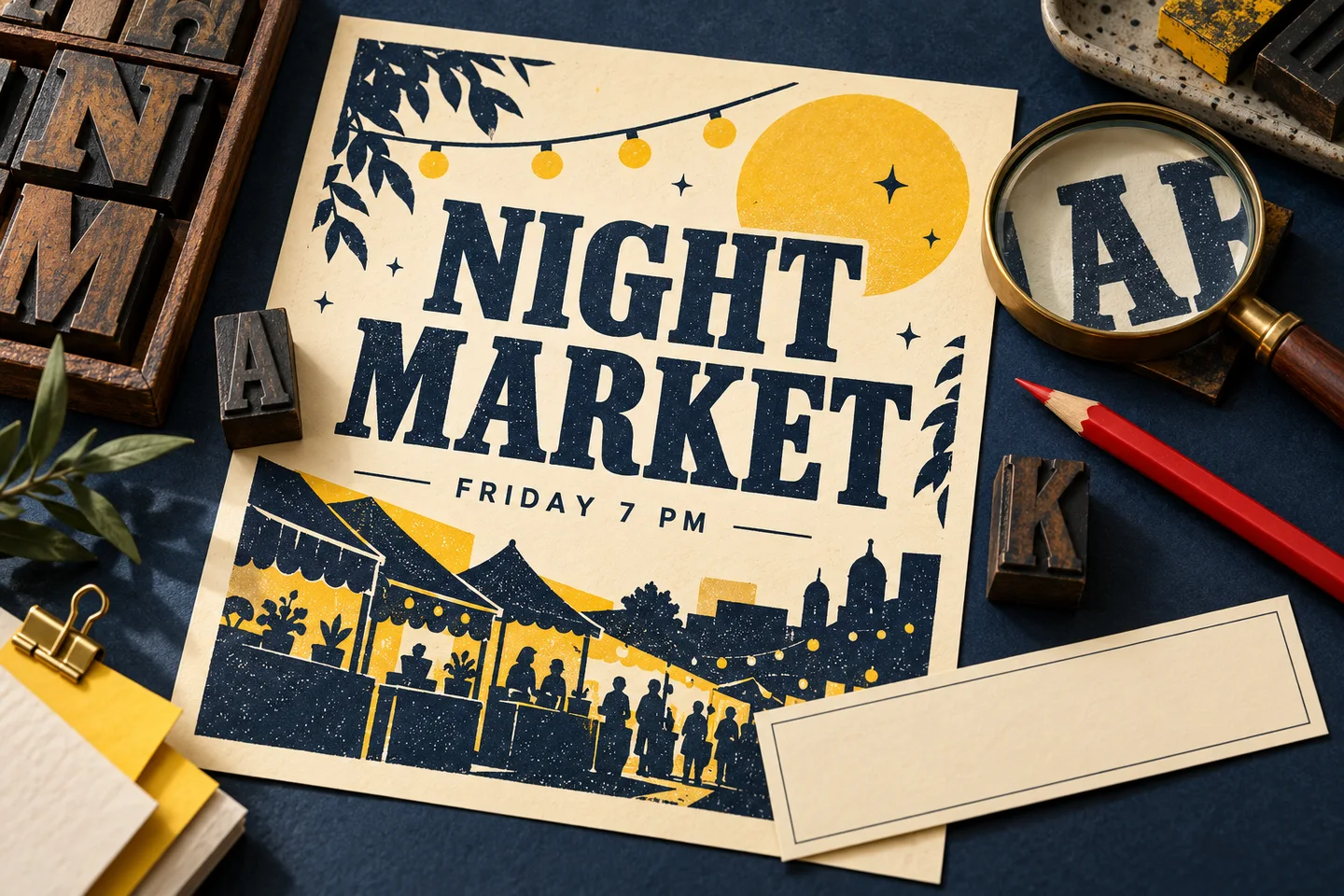
Generated concept illustration of a proofreading workflow, not a Craft benchmark or a screenshot. The event and copy are fictional.
A poster prompt with two levels of text
Use a specific relationship between the headline, supporting line, and illustration:
Create a portrait event poster with the exact headline "NIGHT MARKET" in large bold dark navy lettering near the top. Directly below it, put the smaller line "FRIDAY 7 PM". Show a simple illustrated row of evening market stalls across the lower half, with warm yellow lights. Use a cream background, strong light-dark contrast, and generous margins. Keep all illustration away from the two text lines. Render each quoted line once and include no additional words or labels.
Choose a matching portrait output format in the controls. If you need help describing the rest of the composition, use the Canva Craft prompt guide.
Quoting the wording distinguishes the words you want to see from the description around them. Position and contrast tell the model where the copy belongs and how it should compete with the scene. Neither replaces proofreading.
This approach is consistent with Ideogram's text-in-image guidance, which recommends exact quoted wording and clear placement for its own models. These are useful prompting principles to try, rather than evidence that every model will respond identically.
Match the fix to the failure
Do not start by rewriting the whole poster. First identify what went wrong.
| What you see | What to change in the next attempt | When to finish outside generation |
|---|---|---|
| A missing, added, or misspelled word | Recheck the quoted copy; shorten it and remove competing labels | If the approved wording must be exact |
| Correct words on a busy background | Reserve a plain area and request stronger foreground-background contrast | If the illustration is already approved |
| Text cut off at the edge | Ask for clear margins and choose a format with room for the copy | If precise alignment is required |
| A headline repeated in the scene | State that each quoted line appears once and omit extra signs or packaging | If repeated attempts keep adding text |
| Small details that blur at viewing size | Reduce the amount of copy and enlarge the important lines | For addresses, schedules, and longer factual information |
Here is a focused replacement prompt for a crowded layout:
Create a new version of the night market poster with a plain cream upper third. Keep the exact headline "NIGHT MARKET" large and centered there. Place "FRIDAY 7 PM" below it with clear spacing. Restrict the market illustration to the lower half. Use only these two lines of text.
If your workflow supports editing the previous image, you can instead ask for a specific text change and list the artwork details to preserve. Compare the entire revision afterward; a local instruction can still affect other areas. OpenAI's image prompting guide describes this changes-and-constraints approach for its image models.
Use editable text when the facts are fixed
For a confirmed event, the venue, date, price, and booking address need to survive every revision. Generating the artwork with a blank copy area and adding those details in a design editor gives you direct control over the wording.
A useful artwork-only prompt is:
Illustrate an evening market with navy silhouettes, warm yellow lanterns, and a cream background. Place the stalls in the lower half. Leave the upper half as a clear cream field for text to be added separately. Include no writing, logos, signs, or labels.
Download the artwork, place it in your layout, and add normal editable text boxes for the approved copy. Canva's text editing help documents that separate editing workflow. Choose the tool where you will finish the poster; do not assume a downloaded image contains selectable type layers.
Likewise, generate a QR code with a dedicated QR tool and test its destination. A QR-shaped pattern inside an image is not evidence of a working link.
Proofread twice before sharing
At full size, compare the output letter by letter with the approved copy. Pay particular attention to similar-looking characters, repeated words, punctuation, currency symbols, and numbers. Ask a fluent reader to check wording you cannot verify yourself.
Then reduce the poster to the size people will actually see. A headline that is technically correct can still be too small in a feed preview. For print, inspect both the overall poster and the smallest factual line in a proof.
Use the aspect ratio and resolution guide if text becomes cramped after resizing. Fixing the shape and hierarchy earlier can save you from repeatedly generating the same layout problem.
Start with two short lines in the image generator. When the artwork works but the copy remains unreliable, preserve the visual direction and finish the wording as editable text.
Sources checked October 23, 2026. Examples illustrate a workflow; they are not a comparison test or a guarantee of error-free lettering.