

Canva Craft Menu Design: A Readable Weekend Special
A Canva Craft menu design becomes easier to maintain when permanent decoration and changeable menu information have different jobs. Generate an inviting cover or background, then set the dishes and prices as editable text.
This example creates a fictional café’s weekend-specials sheet. It includes a generated title and a small food illustration, with an intentionally empty middle area. The deliverable is a reusable design base, not an invented restaurant’s published menu.
Decide what belongs in the generated image
The fixed title is WEEKEND SPECIALS, arranged over two lines. A croissant and coffee illustration suggest the café context. The middle remains blank because names, prices, availability, and dietary information may change.
This distinction is useful even for a very short menu. A correction to one price should not require regenerating the food illustration or accepting a new spelling of the title.
| Element | Treatment | Reason |
|---|---|---|
| Weekend Specials title | Included in the generated concept | Short, stable display copy |
| Decorative sprig | Small accent near the top right | Adds character without filling the writing area |
| Food illustration | Bottom-left corner | Establishes the café theme |
| Dish names and prices | Editable text added afterward | Need exact wording and easy revision |
| Dietary or allergen information | Confirmed by the business, then typeset | Must describe the real food accurately |
| Main menu area | Plain cream center | Gives actual information enough space |
Craft’s official announcement names menus among the design material used in its training. This exercise applies an editorial choice of our own: keep frequently changing facts outside the generated pixels.
Generated menu base and exact prompt
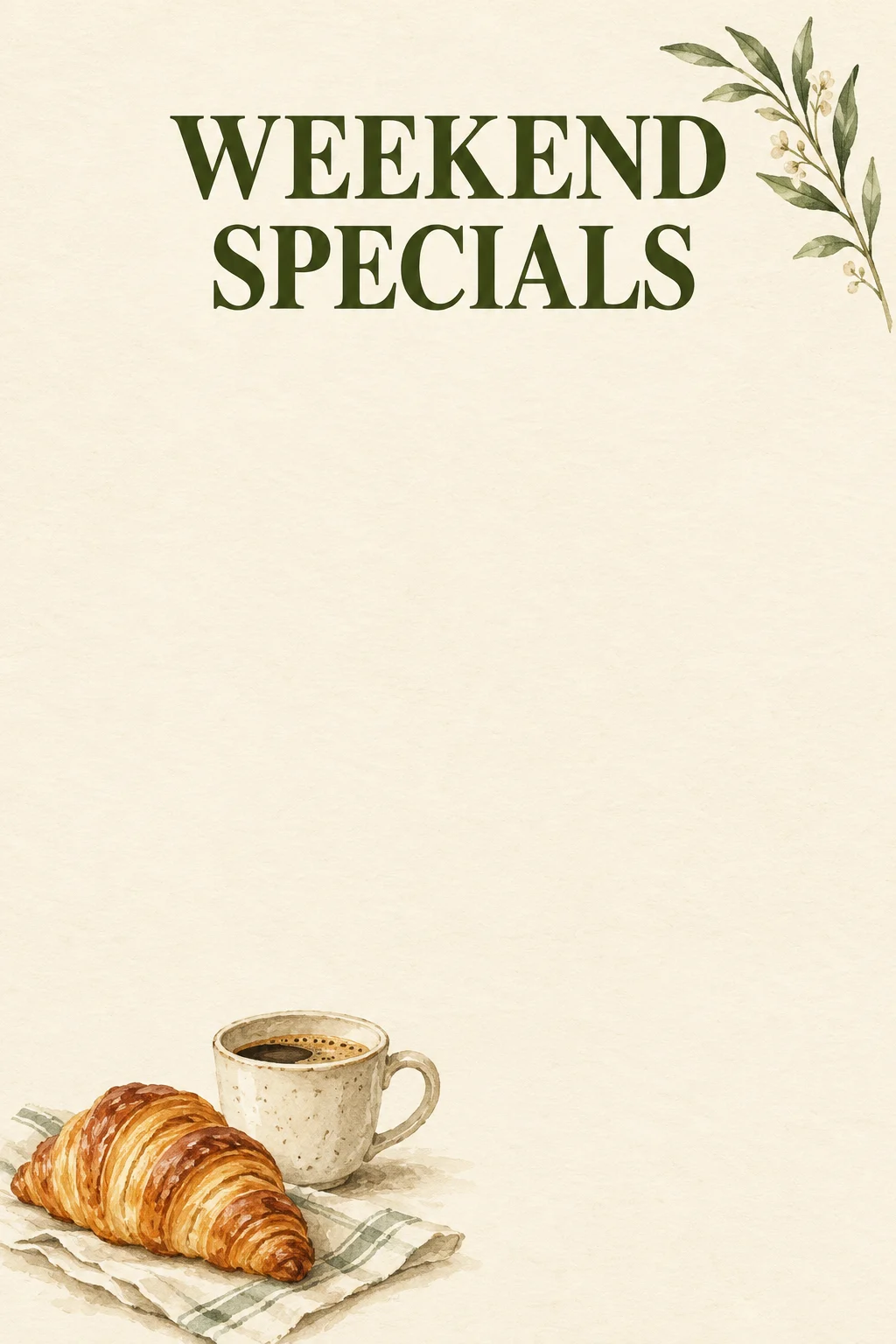
Original generated illustration for a fictional brief. Produced with Codex’s image generation tool, not a recorded Canva Craft output or a real restaurant menu.
Create a finished portrait 2:3 cafe menu cover design, flat full bleed, no mockup. Exact words only: "WEEKEND" on first line and "SPECIALS" on second line at the top, centered dark olive bold serif lettering, beautifully readable. Warm cream background, one small delicate olive-green botanical sprig in the top right corner away from lettering. Bottom left corner has a tasteful small gouache illustration of a croissant and ceramic coffee cup, no brands. Keep the entire middle 50 percent plain cream and completely blank for menu items added later. Wide margins, elegant neighborhood cafe stationery, subtle paper texture, clean straight page edges. No prices, no filler text, no fake writing, no logos, no watermark.
The blank center is an intentional part of the deliverable. Do not mistake the absence of dishes and prices for missing content: the next stage is to add confirmed business information in editable layers.
Actual generation record
| Recorded field | Actual value for the illustration above |
|---|---|
| Generation tool | Codex built-in image generation |
| Input | Text prompt only; no reference image |
| Requested aspect ratio | 2:3, specified in the prompt |
| Returned source size | 1024 × 1536 pixels |
| Background | Opaque; transparent_background = false |
| Outputs retained | One original PNG and one compressed WebP |
| Seed, steps, guidance, exact model version | Not exposed by this tool; not recorded |
| Canva Craft run | Not performed for this illustration |
For a Craft reproduction, use portrait 2:3 and a suitable resolution setting up to its documented 2K capability. There is no assumed “menu mode,” font-control API field, or automatic price-list import in this recipe.
Build the menu in six practical steps
1. Collect the approved menu information
Ask the business for current dish names, descriptions, prices, currency, service dates, and any necessary dietary wording. For this fictional exercise, use placeholder text only in your private working document, not in a menu presented to customers.
Keep a plain-text master so approval can focus on the facts rather than the decoration.
2. Generate the stable artwork
Open Dream Lab in Canva and choose Craft where available. Select a portrait format and paste the full prompt. You can prepare the brief in the generation workspace before running it.
Save the first candidate, the prompt, and the selected output settings. Do not ask for tiny decorative writing in the blank center; pseudo-text would make real typesetting harder.
3. Check that the writing area actually survived
The shown result has a clear two-line title, a large uninterrupted cream center, and food artwork near the lower edge. The botanical sprig is close to the upper-right boundary. For print, place the image on a canvas with appropriate safe margins instead of assuming every edge can be trimmed safely.
The illustration resembles a pastry and coffee, but that does not establish the size or contents of any actual menu item.
4. Add names and prices as real text
Create separate text boxes or a simple two-column layout for dish names and prices. Use a consistent price alignment. Keep descriptions shorter and visually quieter than the dish names.
Use one readable body font and a clear hierarchy. A menu does not benefit from five font styles if customers cannot tell which price belongs to which item.
5. Add confirmed service and dietary information
Use the business’s approved wording and verification process. Do not infer ingredients or allergens from the generated food illustration. If the picture is decorative rather than a photograph of the served dish, present it accordingly.
This is a content-approval step, separate from evaluating whether the artwork looks good.
6. Export and review the actual sheet
Produce a proof at the final intended size. Check every line against the text master, including currency symbols and decimal separators. Have another person read the prices aloud while you follow the approved list.
Keep an editable master so next weekend’s changes do not start from a flattened PNG.
A layout recipe for the blank center
For a first layout, use roughly the upper quarter for the title and the lower quarter for artwork and footer space. Reserve the middle half for a small number of specials. These are design suggestions, not measured control coordinates returned by the model.
If the business needs a long menu, use a second sheet or a different layout. Shrinking every item to force twenty dishes into a decorative one-page template makes the finished menu harder to use.
At a 1024-pixel-wide working canvas, begin with a visibly generous inner margin, then test the proof at its real print size. Do not confuse a comfortable screen preview with a legible tabletop menu.
Fix the artwork before typesetting
| Issue | Proposed instruction | Why to fix it first |
|---|---|---|
| Decorative marks appear in the center | “Leave the entire middle half blank with no letters or marks.” | Prevents interference with item text |
| Food illustration dominates the sheet | “Confine the food illustration to the lower-left quarter.” | Restores usable writing space |
| Title touches the edge | “Keep every letter well inside a wide top and side margin.” | Reduces clipping risk |
| Sprig overlaps the title | “Move the sprig below the title and outside the central text area.” | Keeps the headline legible |
These are proposed revisions; this article contains one generated source image. If only the dish wording changes, edit the text layer instead of generating another background.
Print size and handoff
The source is 1024 × 1536 pixels. At 300 pixels per inch it supports approximately 3.4 × 5.1 inches before enlargement. A larger printed sheet needs an appropriate production file and a proof; exporting this source as PDF does not add detail to the illustration.
Package the original image, exact prompt, editable menu, approved text master, and selected export. Record who approved the factual copy and when. For a poster with more prominent event lettering, continue with the night market poster exercise; for recurring text issues, use the proofreading guide.