
Canva Craft Typography: A Two-Line Editorial Print
A Canva Craft Typography brief needs more than “beautiful lettering.” It needs approved words, a line arrangement, a clear relationship between type and decoration, and a way to decide when the result is ready to use.
This example develops an editorial print around two short words: MAKE ROOM. It is a fictional creative exercise, suited to a studio mood board or an interior styling concept. The task is visual hierarchy and legibility; it is not font design or a promise of an editable typeface.
Choose the words before the lettering style
The phrase has two four-letter words, so it can form a compact two-line block. The top and bottom words do not have identical visual width: letter shapes and spacing still matter. We ask for balance, then inspect the result rather than demanding mechanically equal widths.
The design uses dark forest-green lettering on ivory. An orange ribbon adds motion below the words, while keeping the letters intact. The decoration has a supporting role: if you remove it, the central message should still make sense.
| Part of the brief | Instruction | What to check |
|---|---|---|
| Exact copy | MAKE on line one, ROOM on line two | No extra word, missing letter, or changed line break |
| Lettering | Bold, high-contrast serif appearance | Clear counters and recognizable letter shapes |
| Alignment | Straight baselines, balanced two-line block | No unexpected tilt or collision |
| Background | Quiet warm ivory | Sufficient contrast behind every letter |
| Accent | One orange curved ribbon | Does not obscure a letter or become a third text line |
Craft’s official introduction describes typography-aware composition. A practical way to use that capability is to tell it which content has priority and which elements must stay out of its way.
The generated print and full prompt
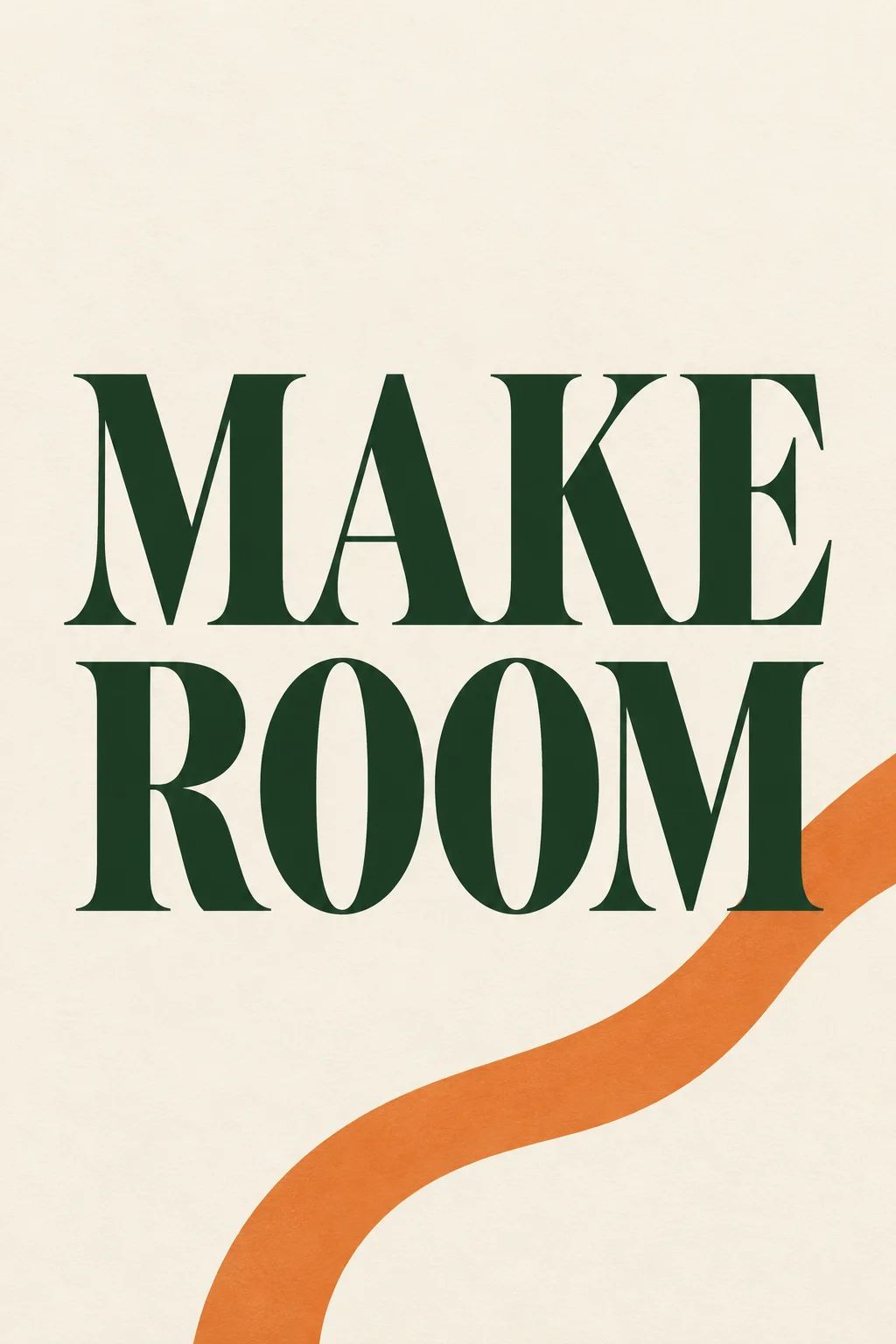
Original generated illustration for a fictional brief. Produced with Codex’s image generation tool, not a recorded Canva Craft output or a client commission.
Create a finished portrait 2:3 typography-led editorial art print, full bleed, not a photographed object. The only text reads "MAKE" on line one and "ROOM" on line two, each word appearing once. Extra-large dark forest-green bold high-contrast serif lettering, carefully balanced spacing, straight baselines, very clear readable letterforms, two lines occupy central 65 percent. Warm ivory background. One small abstract orange curved ribbon passes behind the lower right area without obscuring any letter. Generous empty margin. Restrained contemporary gallery design, crisp edges, subtle fine paper texture. No subtitle, no tiny labels, no logos, no watermark.
This prompt describes a typographic appearance rather than naming a commercial font. If a brand requires an exact licensed font, set the final words in that font in a design editor. A model-rendered approximation is not a substitute for a font file.
Generation record and recommended Craft setup
| Recorded field | Actual value for the illustration above |
|---|---|
| Generation tool | Codex built-in image generation |
| Input | Text prompt only; no reference image |
| Requested aspect ratio | 2:3, specified in the prompt |
| Returned source size | 1024 × 1536 pixels |
| Background | Opaque; transparent_background = false |
| Outputs retained | One original PNG and one compressed WebP |
| Seed, steps, guidance, exact model version | Not exposed by this tool; not recorded |
| Canva Craft run | Not performed for this illustration |
For a Craft reproduction, use portrait 2:3, English text, and a suitable high-resolution output option up to the documented 2K limit. The serif style, palette, and line breaks are prompt instructions, not API parameter names. No CFG, sampler, or negative-prompt field is assumed.
Make the print in five steps
1. Create a copy lock
Save MAKE and ROOM as two separate lines. Put the quotation marks in the prompt to distinguish text from instructions; the quotation marks themselves should not appear in the image.
If you change to a longer phrase, plan a new line arrangement before generating. Simply replacing four letters with twelve can break the entire composition.
2. Define a hierarchy
Make the two words the dominant shape. Keep the background and ribbon secondary. Avoid adding a footer slogan, frame, signature, and decorative symbols to the first attempt; each addition competes for attention and adds another thing to verify.
Use the prompt planning guide if your brief currently mixes content, style, and layout in one sentence.
3. Generate a portrait composition
Open Dream Lab in Canva, choose Craft where available, and set the matching portrait format. Paste the full brief, then generate a first candidate. You can also prepare the same brief beside the site’s generation workspace.
Keep the original result. A later variation may improve the ribbon while making a letter worse, so selection should happen against a saved reference rather than memory.
4. Proof the word shapes and margins
The shown image spells both words correctly and keeps the orange shape away from the lettering. The ribbon is more prominent toward the lower right than the phrase “small accent” might suggest. The serif strokes also create a refined editorial feel rather than a heavy block-letter look.
Those are observations about this illustration. If you want a quieter print, revise the ribbon instruction first. If the fine strokes disappear at your intended size, revise the lettering weight or set the words manually.
5. Finish at the real destination size
Place the artwork on its target canvas without stretching it. Check a full-size view for letter artifacts and a small preview for immediate readability. Keep an uncropped master and a separate destination export.
A generated raster does not become editable lettering simply because the words are readable. Use a text layer when wording, exact font, or spacing needs to remain adjustable.
Three controlled variations to try
Change only the stated variable in each new run. These are untested extensions of the brief.
| Direction | Replace this instruction | Keep fixed |
|---|---|---|
| Quieter editorial print | “Use one thin orange curve confined to the bottom quarter.” | Exact words, green type, two lines |
| More robust small-format lettering | “Use bold low-contrast serif lettering with thicker fine strokes.” | Copy, background, line arrangement |
| Artwork for editable type | “Include no text; leave the middle two thirds blank.” | Palette, paper texture, accent position |
The artwork-only version is useful when you need a specific font or translated wording. It changes the deliverable: you are generating the background, then composing the type yourself.
Diagnose typography failures by their cause
If a letter is missing, first simplify the copy and remove extra text requests. If the words are correct but the design feels uneven, inspect line spacing and side margins. If the decoration crosses a letter, strengthen the exclusion instruction instead of changing the whole style.
Do not solve every issue by adding “perfect” or “professional.” A replacement such as “keep the ribbon entirely below the second baseline” gives a concrete relationship to evaluate. For more troubleshooting, see the poster text guide.
Handoff and print limits
The generated source is 1024 × 1536 pixels. At 300 pixels per inch, that is about 3.4 × 5.1 inches before enlargement. For a larger wall print, create a suitable production file and inspect a physical proof. Sharp-looking web text can reveal raster edges when enlarged.
Keep a package containing the approved phrase, exact prompt, source image, selected export, and any editable typography file. Do not describe the image as a new font, an SVG wordmark, or a vector asset. If you need a reusable brand mark, treat that as a separate design task with its own production requirements.