Canva Craft Journal
Canva Craft and Magic Layers: Check an Editable Poster Before Handoff
Review a Canva Craft poster after Magic Layers. Test its date, artwork, and background independently, fix merged elements, and deliver an editable source.
Create an image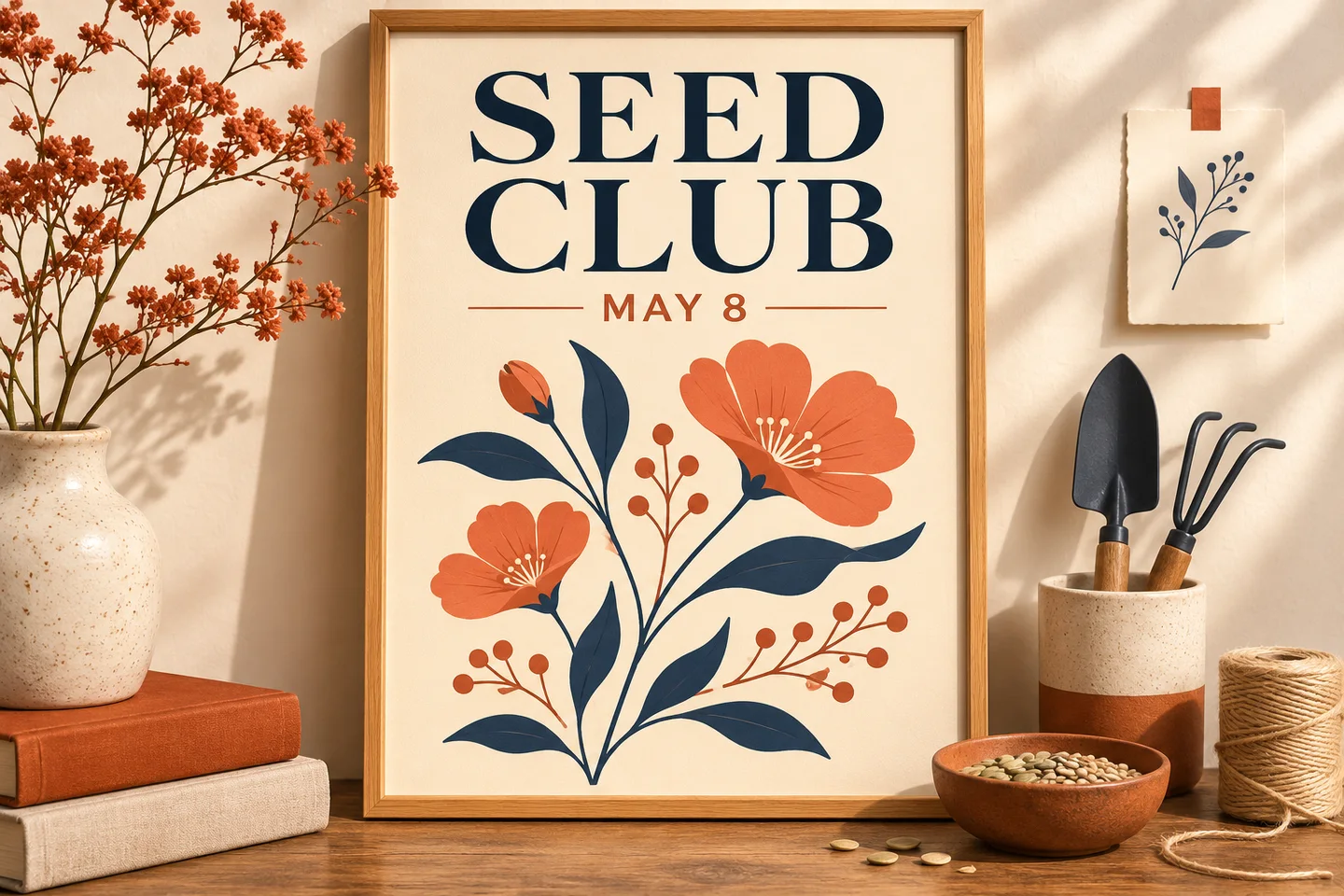
If a teammate needs to change a poster date next week, ask them to make that change in a copy before you hand over the file. The poster passes when the date can be retyped, the artwork stays put, and the old date leaves no trace. That quick test tells you which parts of a Canva Craft image are ready for reuse and which need rebuilding.
Canva's Craft announcement describes Magic Layers as a way to turn generated images into editable design elements. Start a visual concept in the CanvaCraft image generator, then do the layer work and handoff in the editor where your team will make revisions. This guide uses a fictional Seed Club poster to illustrate the checks.
Decide which elements need to change
Write down the first change the recipient is likely to make. For the Seed Club poster, the next session moves from May 8 to May 15. That makes the date a required text object. The headline can stay fixed if the event name is permanent. The botanical artwork can remain a single image if it never needs to move separately from its background.
Editorial illustration of the fictional brief.
For a recurring event, add a second test that reflects the longest likely wording. A date that fits as “MAY 8” may collide with art when it becomes “SEPTEMBER 28.” If you're still planning where the words go, use the poster text guide to set the reading order and leave room around the copy.
Test the converted elements independently
After using Magic Layers where available in Canva, duplicate the design and inspect the copy. Start with the element that must change. Click into the date and type a replacement. If selection only lets you drag a rectangle containing the letters, the date is still pixels. Next, hide or move the selected item temporarily to see whether the underlying image already contains a second copy.
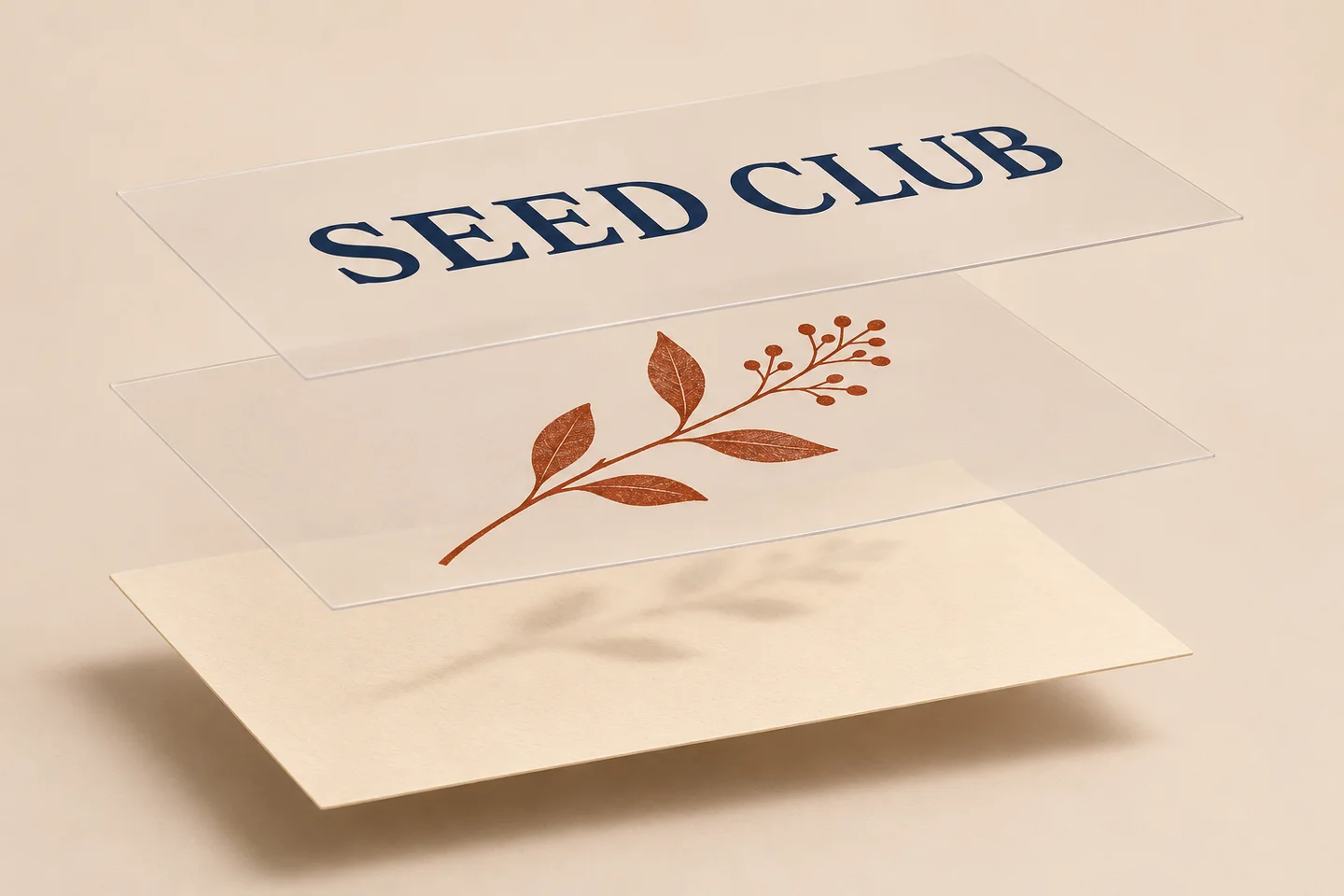
Concept illustration of separate elements. Actual editor results depend on the source image.
| Element | Check in the duplicate | Fix if the check fails |
|---|---|---|
| Date | Change May 8 to May 15. The old date disappears and the new text stays in bounds. | Use a clean background behind a new live text box. |
| Botanical artwork | Move it slightly, if the recipient needs to reposition it. No duplicate or rectangular patch should remain. | Use a separate asset with a clean edge, or keep the art with its background when independent movement is unnecessary. |
| Background | Hide the movable elements and look for fragments of letters, shapes, or shadows. | Replace the affected area with a matching clean background. If the texture is hard to match, generate a version with the date area left clear. |
Undo each inspection change before starting the next. If the date is the only problem, rebuild that one object and keep the accepted artwork. Recheck at the final viewing size. Residual lettering and an obvious patch are easier to miss when zoomed out.
Run a revision before sending the source
Apply the May 15 update in a fresh copy using the same access level as the recipient. The date should change without shifting the plant or the headline. If you need to cover the old date, inspect the edges of the patch before you sign off. Compare the two exports side by side so changes elsewhere are easy to spot.
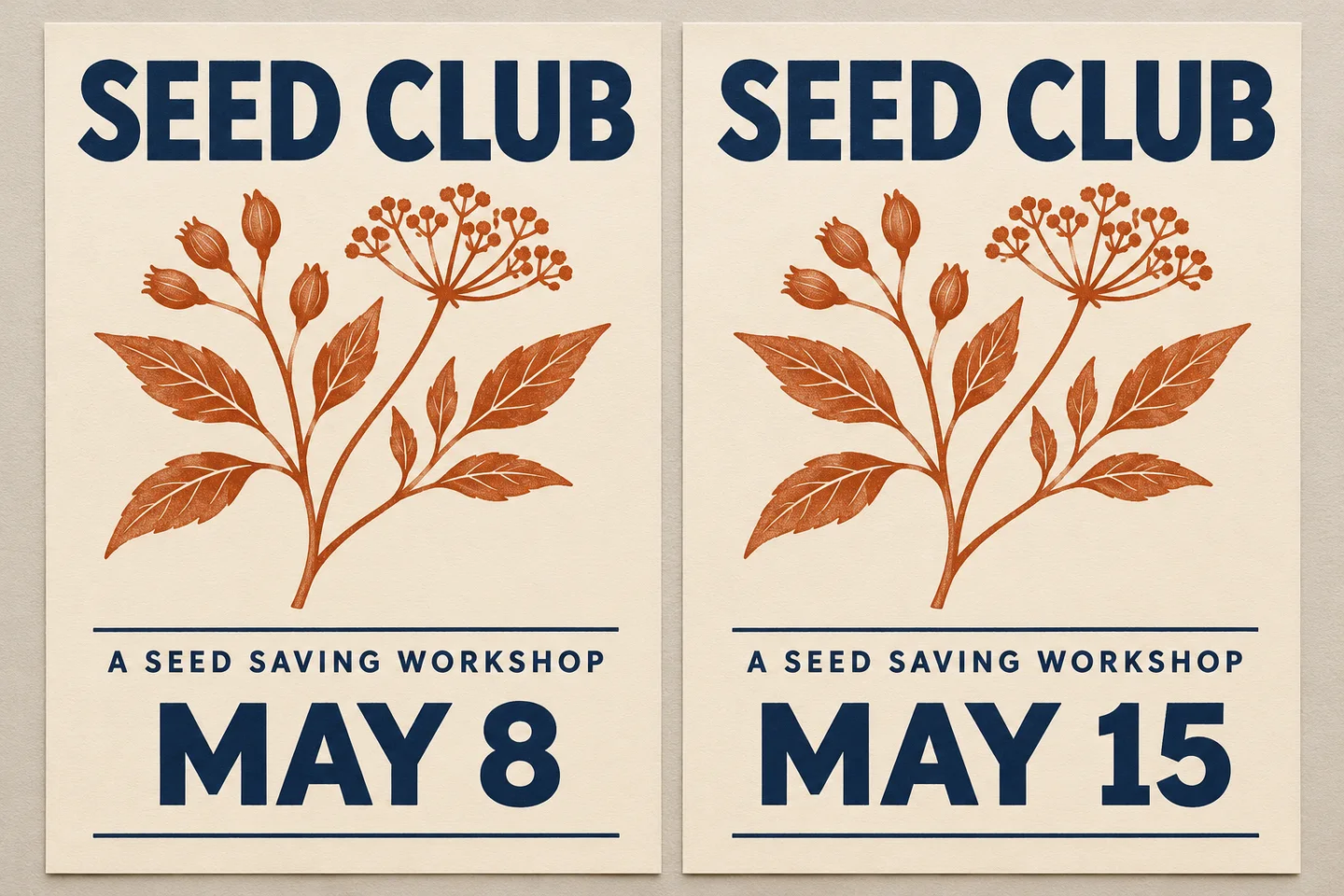
Editorial illustration of the intended revision.
Deliver the editable design with the correct access permissions, the approved sharing export, and a short note listing which elements can change. For this poster, the note can be one line: “Edit the date text box for the next session. Keep the artwork and headline fixed.” A PNG is suitable for sharing the approved layout. Future revisions should start from the editable design.
Put your next idea into practice.
Start with a written brief in the image workspace.