
Canva Craft Journal
Canva Craft API: Retry Requests and Track Image Jobs
Handle Canva Craft API timeouts with a saved idempotency key, poll the original image job, distinguish failed attempts, and preserve the result before its URL expires.
Create an image
If a Canva Craft API create request times out, retry the same attempt with its saved idempotency key. Once you have the job ID, check that job until it finishes. A client timeout can occur after the server has accepted the request, so creating a fresh key immediately can start another generation.
This guide follows Canva’s published API documentation, checked on November 20, 2026. It covers the official API workflow. For a visual brief you want to explore interactively, the CanvaCraft image generator offers a browser starting point.
Choose the app context before sending a request
Canva’s Generate images with CRAFT guide describes the model as CRAFT-1 2K, with identifier craft_v1_2k. Set that model explicitly when your workflow requires it. Omitting the model lets Canva choose one for the request.
Authentication and allowances depend on the app context.
| App context | Authorization and scope | Allowance to check |
|---|---|---|
| Public or private app acting for a Canva user | User authorization, asset:write, and the user’s image_generation capability |
The user’s AI allowance. The guide documents credit_quota_exceeded for an exhausted allowance. |
| Service app acting for itself | OAuth client credentials and service:asset:write |
The team’s API credit pool. The guide documents app_credit_quota_exceeded for the app quota. |
The image generation APIs are in preview. Canva warns that breaking changes can occur without a new API version, and public apps using preview APIs cannot pass review for availability to all Canva users. Check those constraints before choosing a distribution plan.
Save an attempt before you create its job
Record an attempt with its prompt, model, and newly generated UUID. Save the UUID before sending the create request. Keep that record when the connection fails or your process restarts.
Original conceptual illustration of identifying one attempt across repeated requests.
For example, a request file named request.json can contain the following. Replace the example UUID with a fresh one when preparing a new attempt, and retain that value for retries of the attempt.
{
  "prompt": "A red sailboat on a still lake, soft morning light",
  "model": "craft_v1_2k",
  "idempotency_key": "550e8400-e29b-41d4-a716-446655440000"
}
Send it from your backend using an access token already obtained through the appropriate flow.
curl --request POST 'https://api.canva.com/rest/v1/image-generations' \
  --header "Authorization: Bearer $CANVA_ACCESS_TOKEN" \
  --header 'Content-Type: application/json' \
  --data @request.json
The create endpoint reference says a repeated key returns the original job, even when other request parameters differ. Keys are held for 24 hours from job creation. Changing a prompt while keeping its old key can therefore return the earlier job. Use a new attempt and key for an intentional new generation.
When a create response arrives, save job.id beside the attempt. If the response is lost, resend the saved request within the documented key window. For recovery beyond that window, reconcile your own attempt and job records before creating another job.
Poll the saved job and handle its terminal state
Use the same access token that created the job to request its status.
curl --request GET "https://api.canva.com/rest/v1/image-generations/$CANVA_JOB_ID" \
  --header "Authorization: Bearer $CANVA_ACCESS_TOKEN"
Set CANVA_JOB_ID to the saved job.id. Canva’s asynchronous job guidance recommends polling with exponential backoff up to a maximum interval. Respect the endpoint’s rate limits while you wait.

Original conceptual illustration of the documented job states.
Handle the three documented states separately.
- While
job.statusisin_progress, keep the job ID and continue status checks. - On
success, read the result and proceed to download. - On
failed, recordjob.error.codeandjob.error.message, then decide whether the cause can be corrected before starting another attempt.
A repeated key can return a failed job during its retention window. Starting a new attempt after correcting the cause requires a new UUID. Resolve an authorization or quota problem before asking for another generation.
Preserve the result and review the image
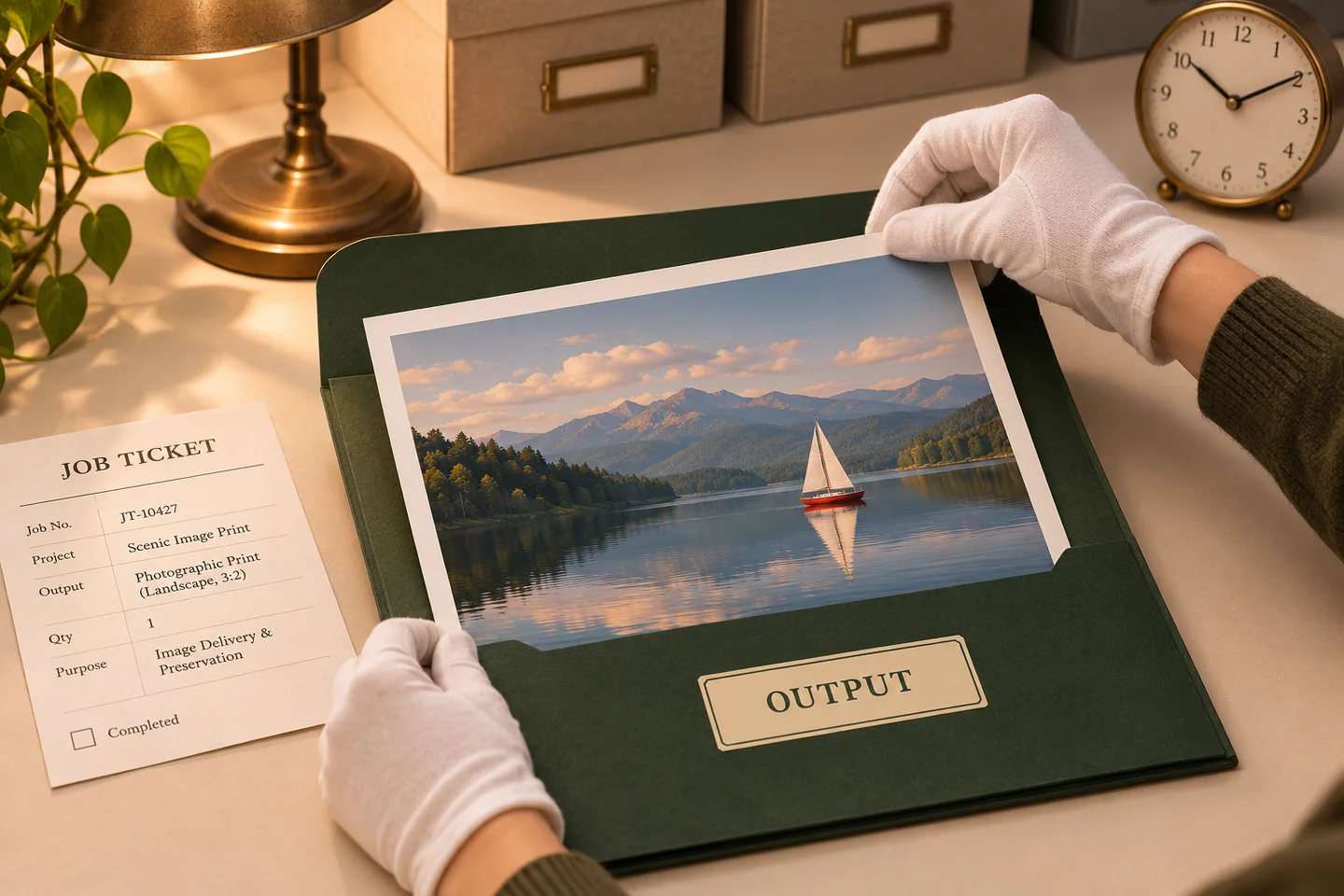
On success, the download address is job.result.image.url. Canva documents a 24-hour validity period for the URL. Download the result and keep it with your attempt and job records so your application can serve the approved asset later.
Original illustration of preserving a completed result.
A public or private app can request import into the user’s Canva account with "asset_upload": {"type": "upload"}. In that case, the job stays in_progress until import completes. A successful result includes the asset as well as the download URL. Check the get endpoint reference for the full response fields.
A successful job still needs visual review. Confirm that the image answers the saved prompt and fits the intended crop before publishing it. The prompt guide helps with a focused revision, and the aspect ratio and resolution guide covers checking the delivered file. If review calls for a new image, create a new attempt while preserving the earlier result and its history.
Put your next idea into practice.
Start with a written brief in the image workspace.