
Canva Craft Journal
Canva Craft Video Thumbnails: Make the Subject Clear at Small Sizes
Create a video thumbnail concept with Canva Craft, add editable text, and test whether the subject and promise survive a small preview.
Create an image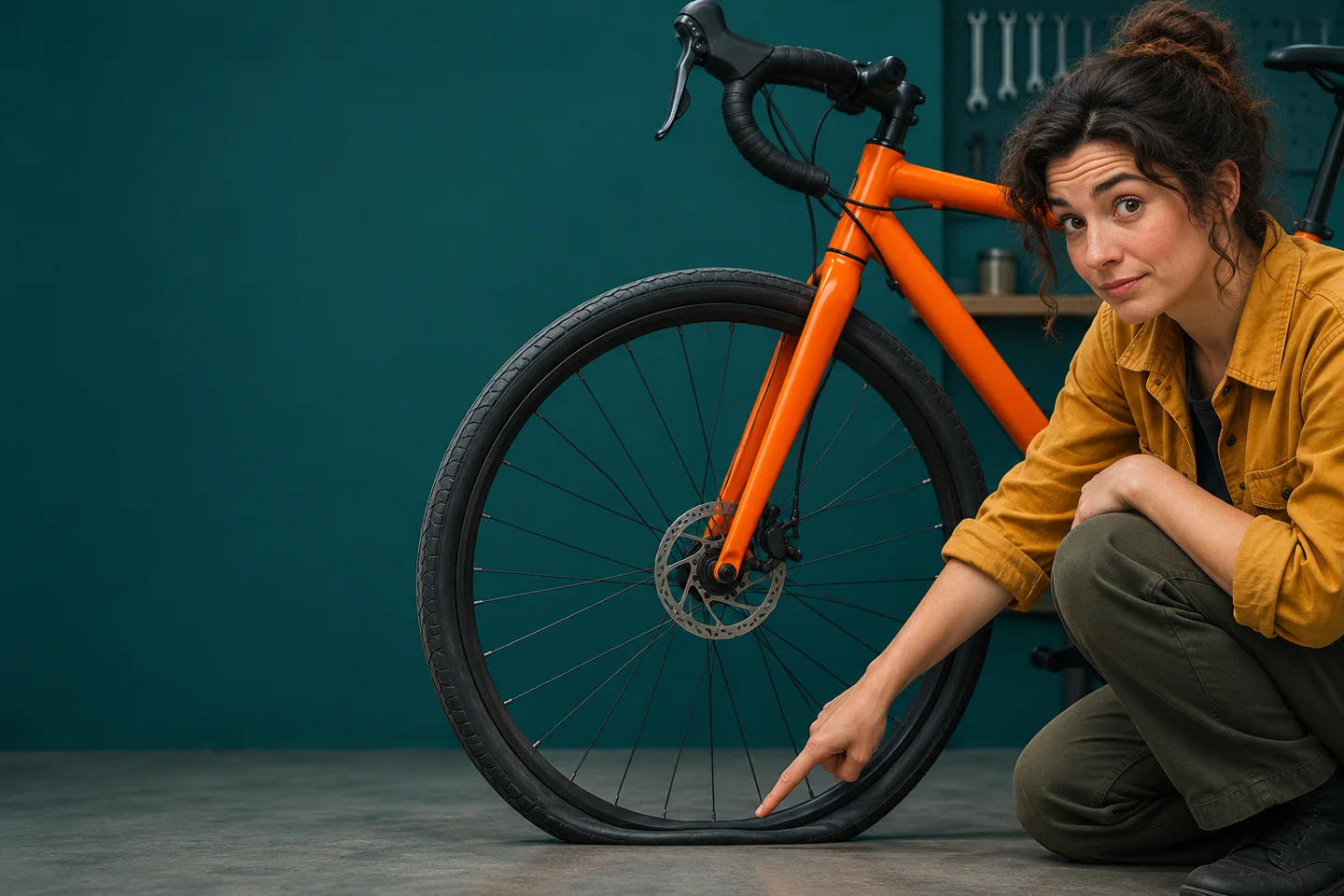
A video thumbnail should tell viewers what they are about to watch even when the picture is small. Use Canva Craft to explore the main image, then add any essential wording separately and check the finished thumbnail alongside the video title.
For a fictional video about fixing a flat bicycle tire, the picture can show the repair and the title can name the steps. Start with the CanvaCraft image generator. Canva’s Craft documentation describes a model that plans the placement of subjects and text before rendering. A clear brief gives that planning step something concrete to work with.
Editorial illustration of the fictional bicycle repair video.
Decide what the picture needs to prove
Start with the exact video title. Suppose it is “How to Fix a Flat Bike Tire.” The image can answer a different part of the viewer’s question by showing the wheel and the tool involved. Show a repair step that is actually in the video, especially when its topic is more specific than the title implies.
Pick one detail a viewer should recognize first. A close view of an orange tire lever at the edge of the tire can work when the video teaches how to lift the bead. A whole bicycle in a cluttered workshop leaves the repair harder to spot.
Give the generator one focal point and space for type
Generate the artwork without text so you can change the copy after seeing how the crop reads. For the bicycle video, try this brief:
Wide editorial photograph for a bicycle repair video. On the right side, show a close-up of a hand using a bright orange tire lever at the edge of a black bicycle tire. Use a dark matte teal workbench. Keep the left side clear for a short label. Omit lettering, logos, and extra tools.
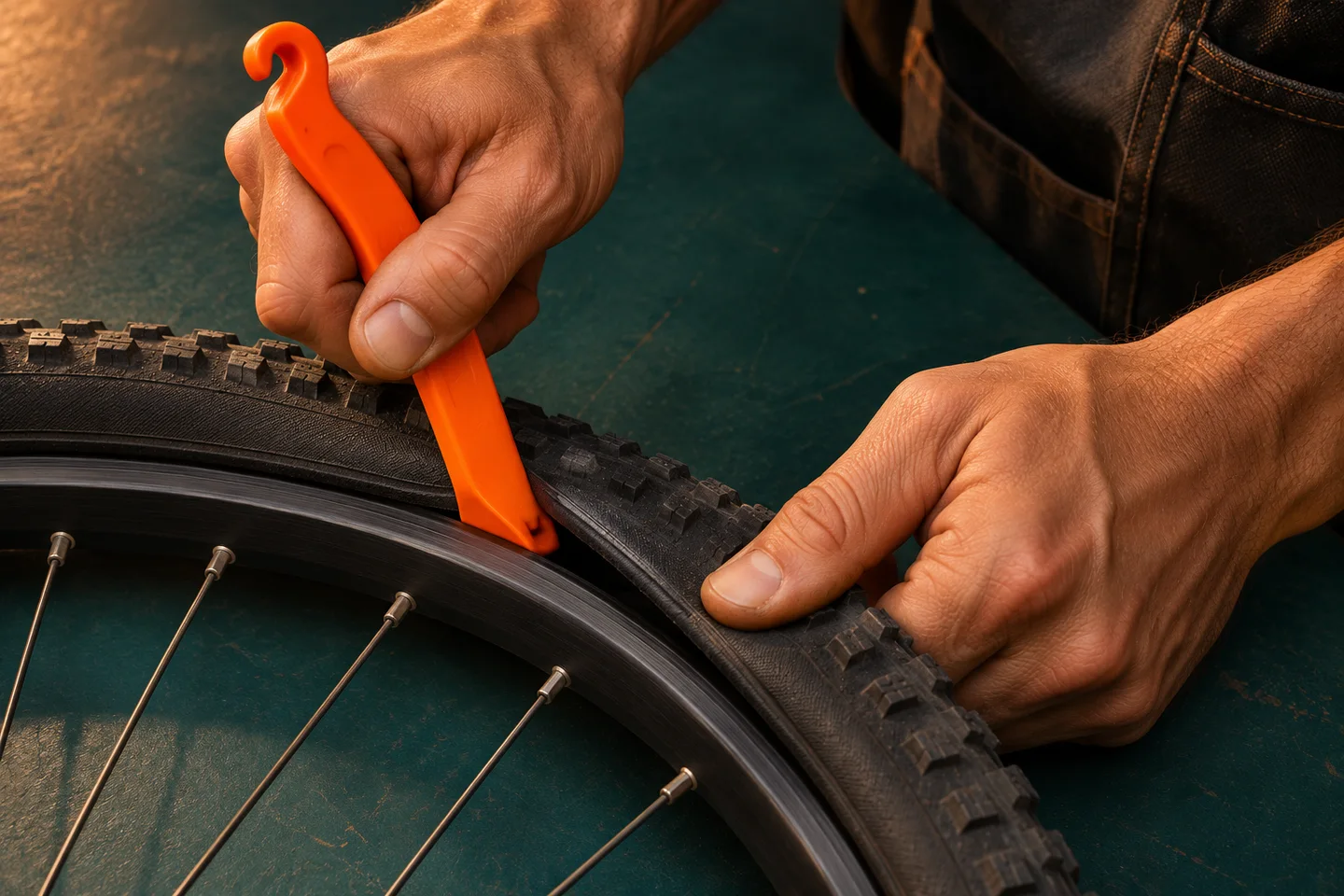
Editorial illustration of using the repair step as the focal point.
Place the artwork in the intended wide canvas before you commit to it. Keep the lever and the hand inside the crop, with clear space around both. If the label adds useful information, such as “NO SPARE TUBE” for a video about applying a patch, set it as editable type. The poster text guide has more on checking contrast and wording. Use the aspect ratio and resolution guide if your source artwork needs a different crop.
Test the export beside its title
Open the exported thumbnail at a small size beside the actual title. Put it near a few other previews so you can see whether the subject still reads in a busy row. If the tool disappears, enlarge it or choose a tighter crop. If the words run into the hand, shorten the wording or shift the subject. Compare a version with the label and one without it to see what the label adds.
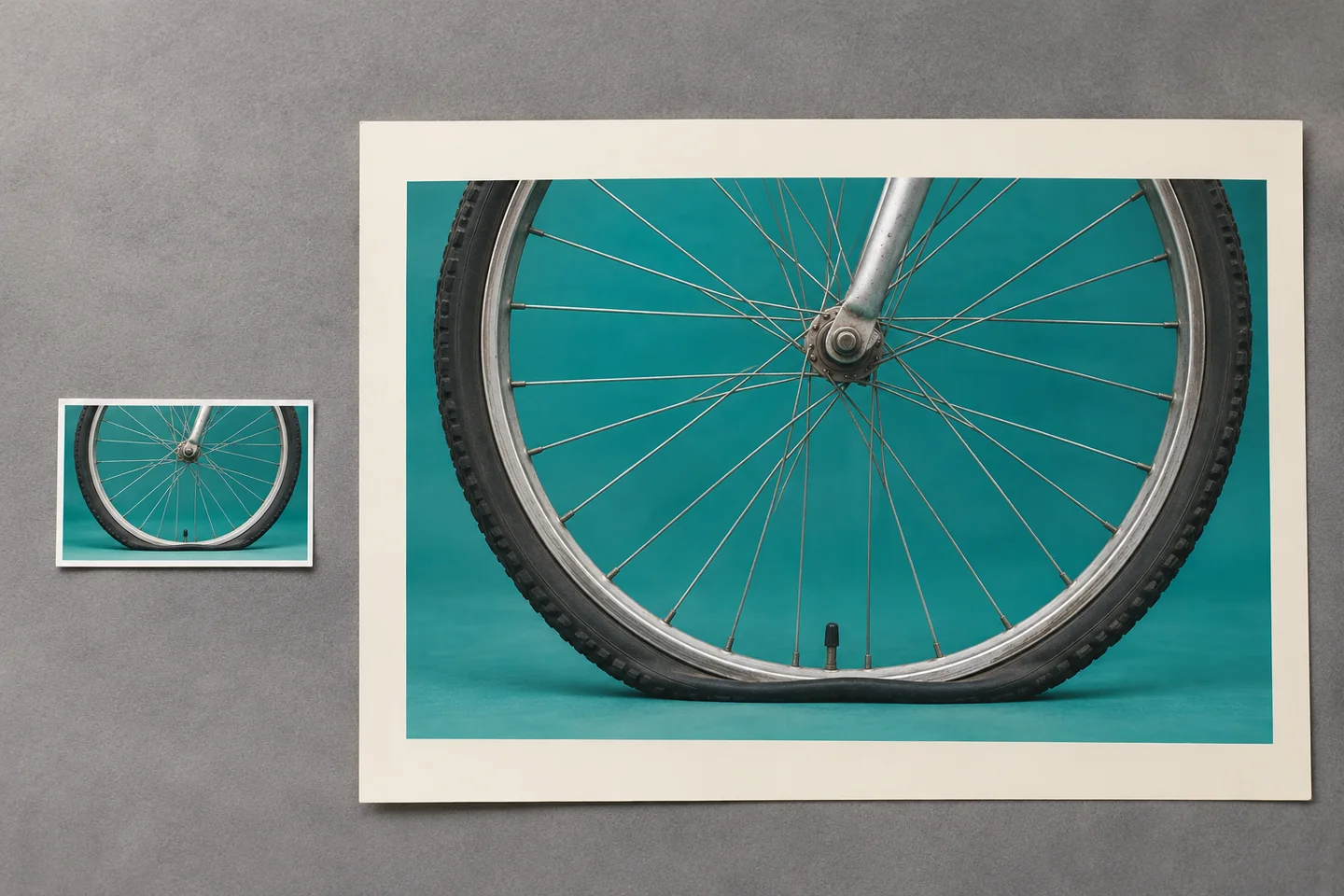
Concept illustration of comparing the same composition at two sizes.
For a long-form YouTube video, check the current custom thumbnail guidance before export and confirm how the uploaded thumbnail looks with the title. Save the editable layout with the final export so a future title change can be reflected without regenerating the artwork.
Put your next idea into practice.
Start with a written brief in the image workspace.