Canva Craft Journal
Canva Craft vs Canva Brush: Create an Image or Edit a Design
Compare Canva Craft and Canva Brush using one café event brief. See which model fits a new hero image, an editable design revision, or a workflow that needs both.
Create an image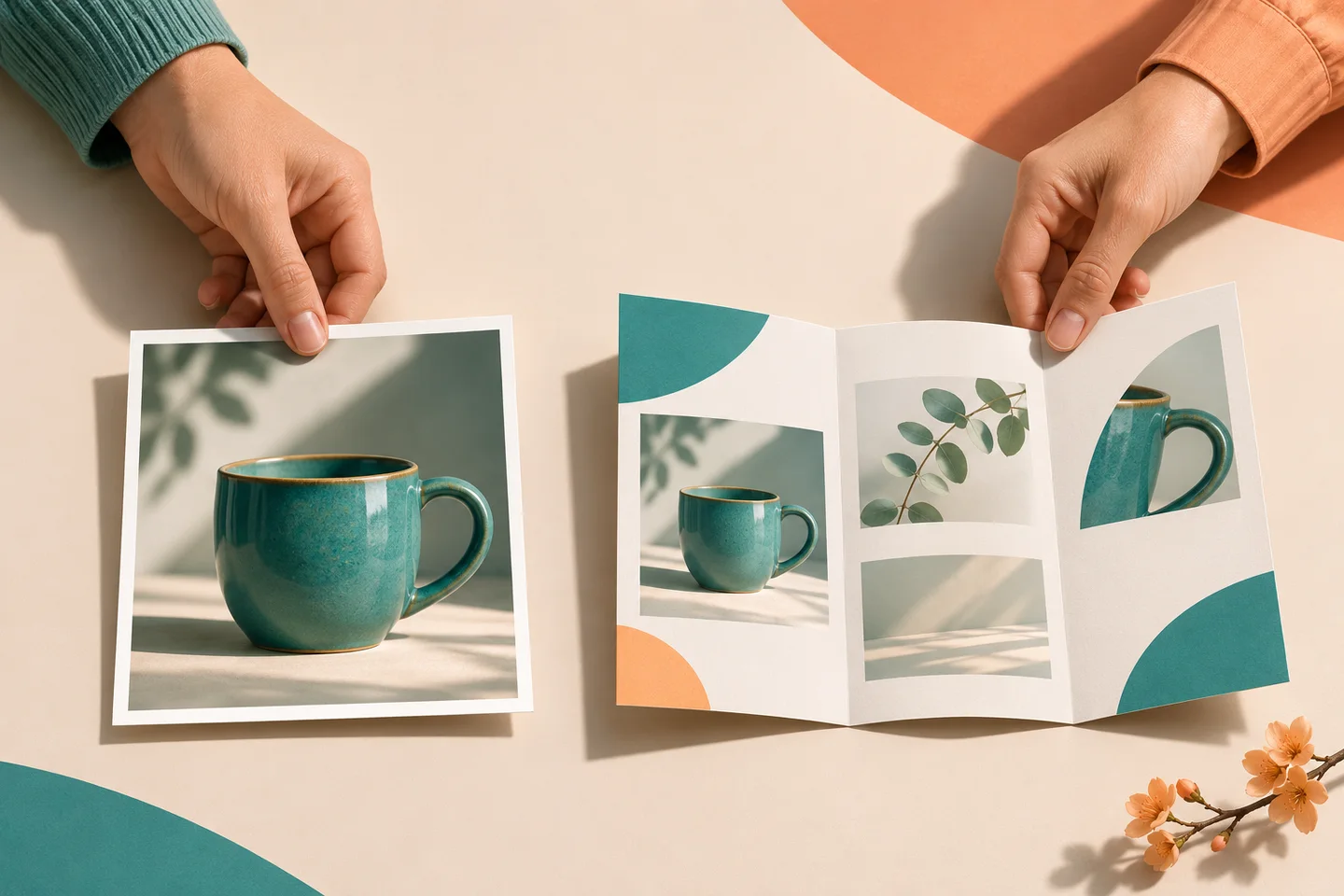
Use Canva Craft when the missing deliverable is a new image. Use Canva Brush when the work lives in an editable Canva design and you need to revise that design. If an approved design needs fresh artwork, you can use both approaches in sequence.
Picture a café planning a tasting event. The team needs a new photo concept for its announcement, then needs to move the event date across an existing three-page program. Those are two different briefs. The CanvaCraft image generator gives you a place to explore the hero image. Canva describes Brush as powering supported edits inside Canva AI.
Editorial illustration of the two deliverables.
Canva Craft vs Canva Brush at a glance
| Decision | Canva Craft | Canva Brush |
|---|---|---|
| Starting point | A visual brief for an image you need to create. | An editable Canva design and an instruction describing what should change. |
| Main deliverable | A new image to review and place in a layout. | A revised Canva design with editable elements. |
| Best first task for the café | Explore a cup photograph with room for a headline. | Revise the program date and check spacing on every affected page. |
| What to verify | Subject, composition, crop, and any words embedded in the image. | Whether the requested change applied and whether approved elements still match across pages. |
Canva’s Craft documentation describes a model that plans the layout of a new image before rendering it. Canva’s Brush announcement describes a vision-language model that can inspect and adjust design elements, including typography, colors, and layouts. This comparison is based on those published descriptions.
Create the missing campaign image with Craft
Start the café brief with the job of the picture. The cup should draw the eye, and the left side should leave room for the event title during layout. The exact date belongs in the program or the final announcement’s text layer, where the team can update it later.
Editorial photograph of one glazed teal coffee cup on a pale terracotta windowsill in morning light. Place the cup in the right third. Leave quiet cream wall space on the left for a headline. Use a restrained teal and terracotta palette. Omit lettering and logos.
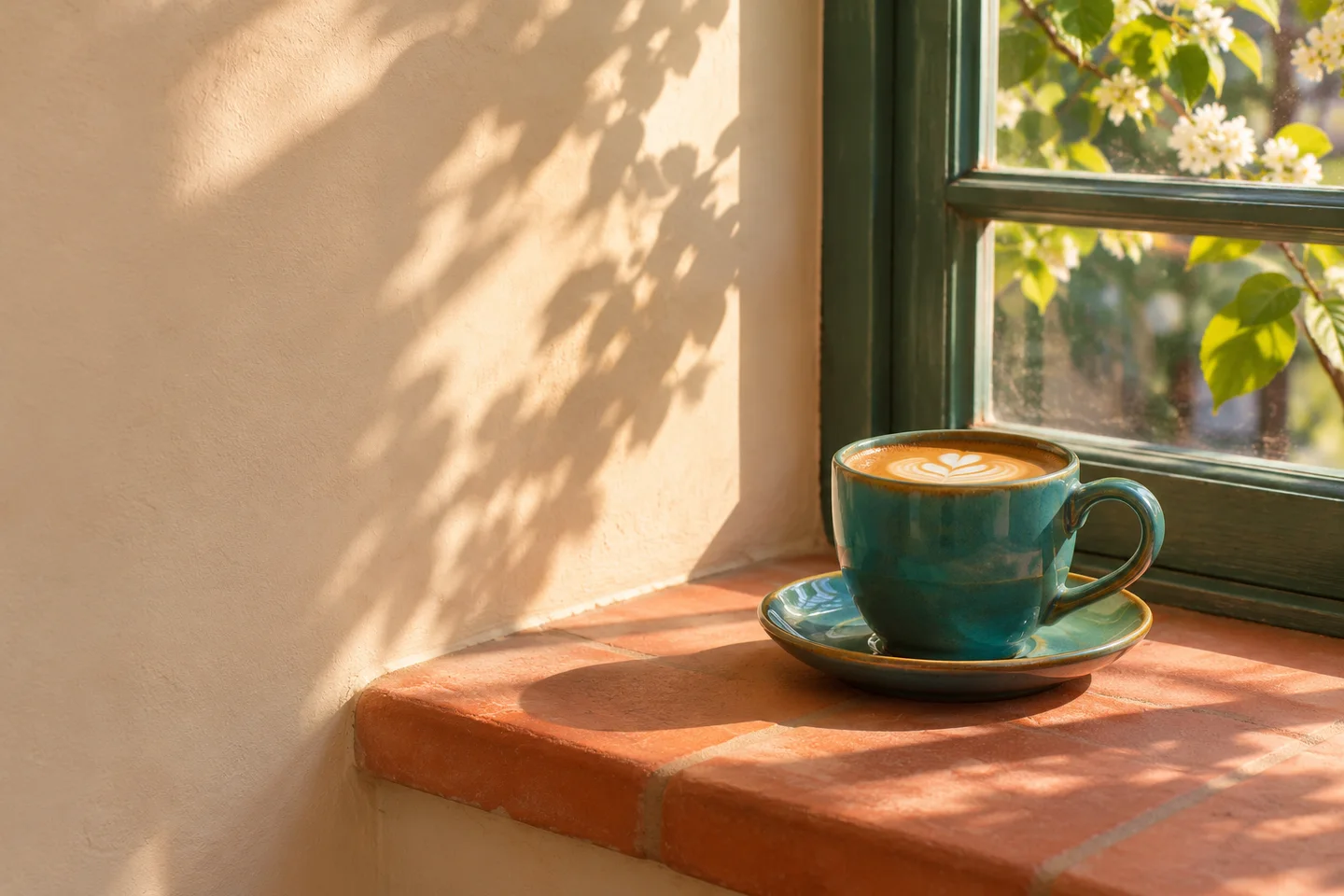
Illustrative art direction for the café brief.
Check the image inside the intended crop before selecting it. If the rim disappears or the headline overlaps the handle, adjust the framing or revise the prompt to give the cup more clearance. The aspect ratio and resolution guide covers choosing the canvas and checking the crop.
Revise the existing program with Brush
If the team already has an editable three-page program, duplicate it before the revision. In Canva AI, where the requested edit is supported, give the instruction a scope and name the elements that should stay fixed.
In this three-page tasting program, change the event date from May 8 to May 15 wherever it appears. Preserve the approved type styles, page order, prices, and cup photo. Check whether the date still fits in each location.
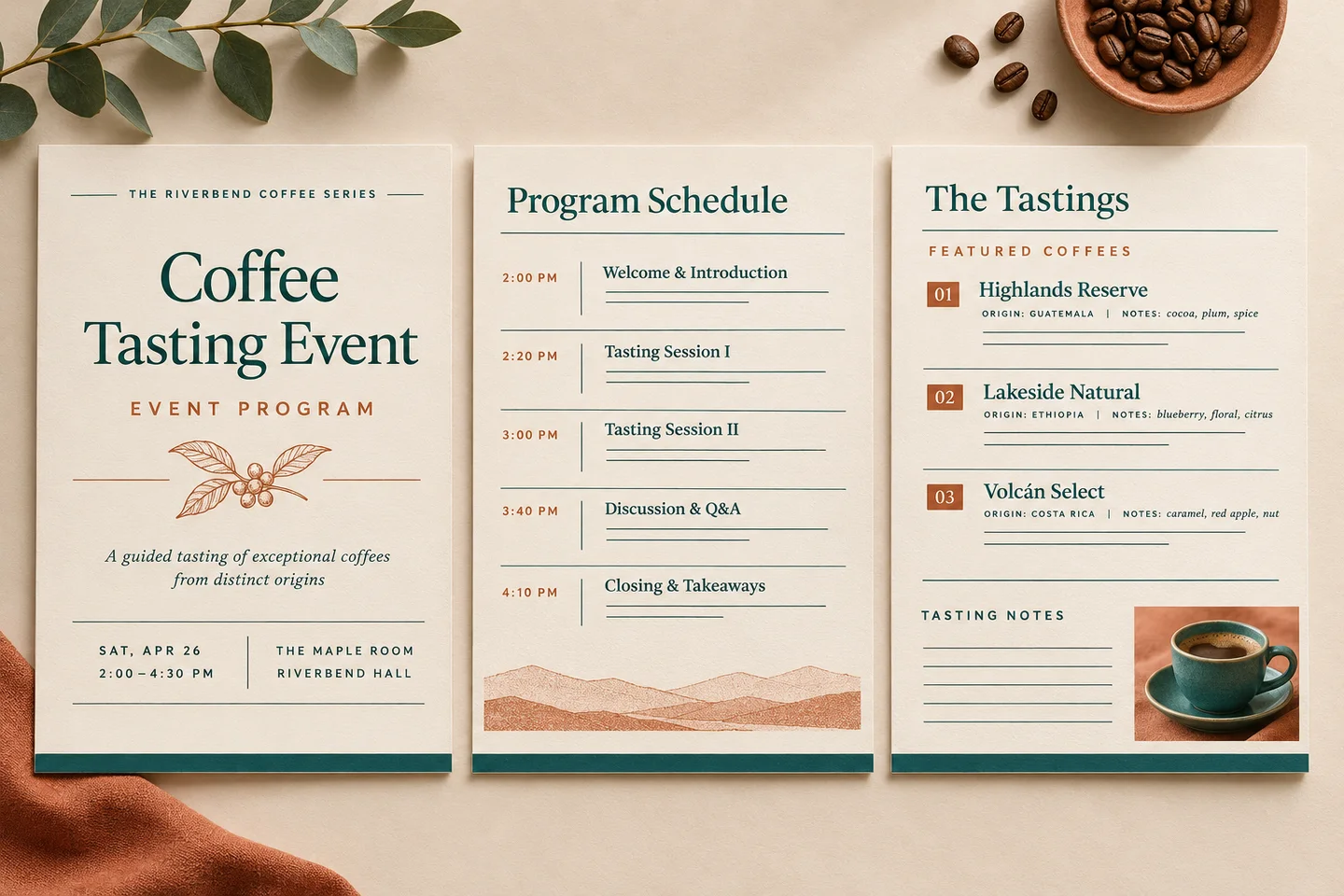
Editorial illustration of a multi-page review.
Open each page and verify the date against the original. A date in an image or a decorative badge may need separate attention. Check the page with the tightest spacing first, then inspect the final export. Canva’s announcement describes supported edits and a rollout, so confirm access in your own Canva workspace before scheduling a handoff around Brush.
Use both when the artwork and layout need work
Create the cup image, review the crop, and then place it into the editable program. Keep the final date and ticket details in the design as text. If the only source you have is a flattened poster, first determine which parts need rebuilding as editable elements. The Magic Layers handoff guide walks through checking those elements with a trial revision.
Put your next idea into practice.
Start with a written brief in the image workspace.